Delete Hostinger Temproray Domain Name
If you are using Hostinger you’ve probably noticed a temporary preview URL, and you want to remove it?
Here are the 3 easy step to do it:
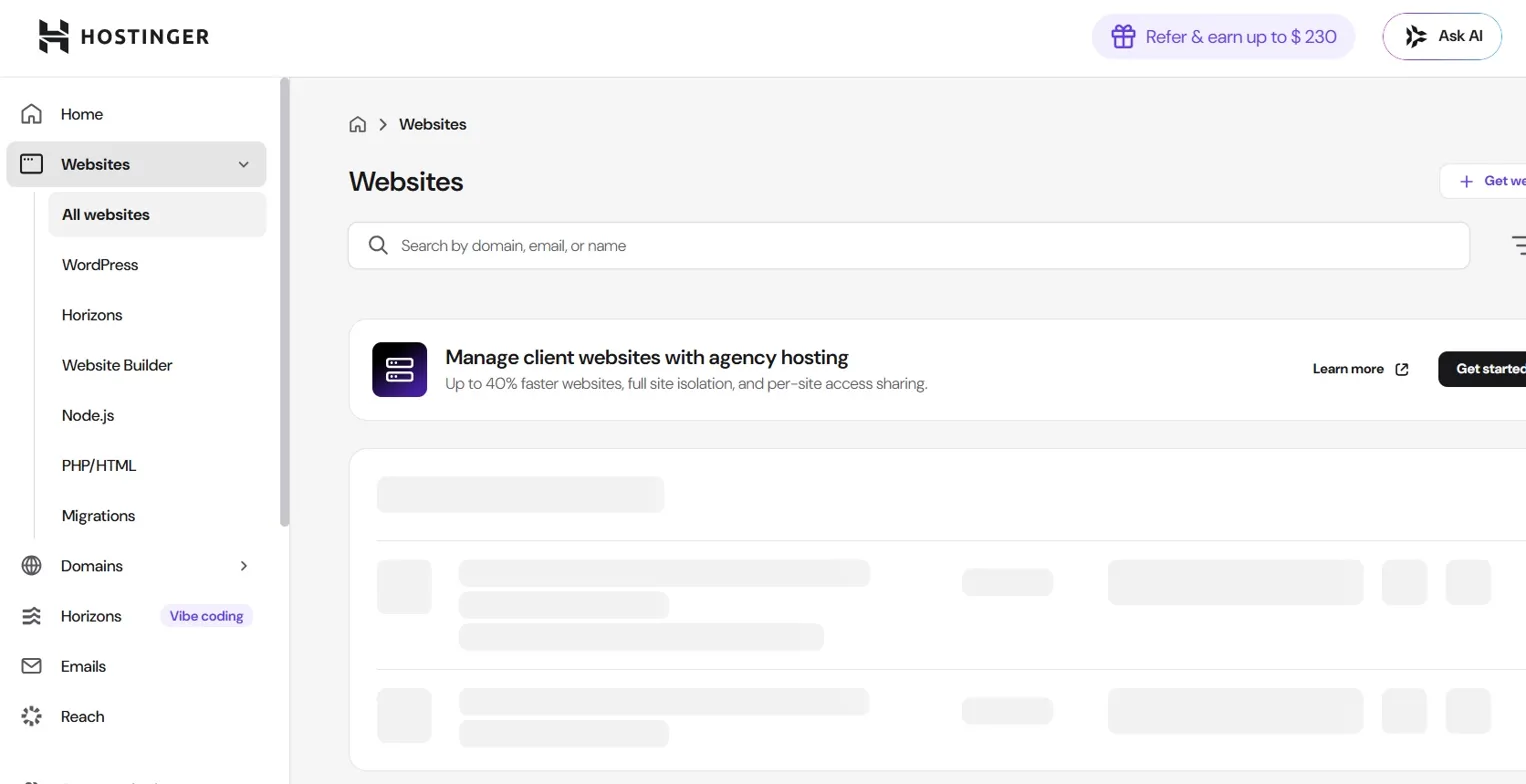
Step 1: Log Into Your Hostinger Panel
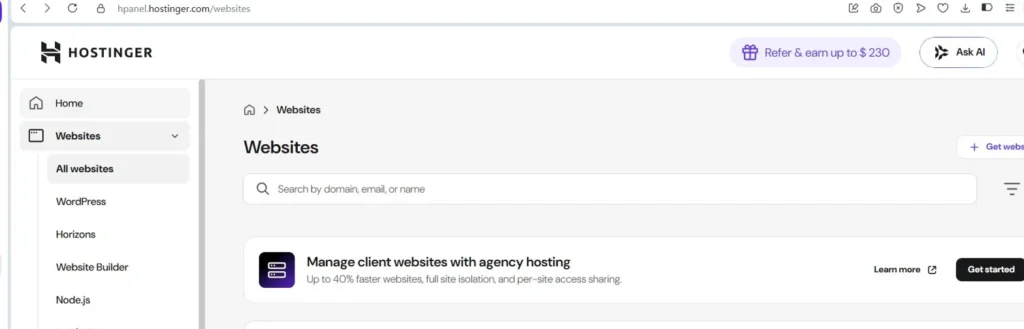
Go to your Hostinger control panel at hpanel.hostinger.com/websites
You’ll land on the Websites section where all your domains are listed.
Step 2: Find Your Website and Open the Menu
Search the website you want to manage via hostinger bar provided or C + F and type in browser search br. On the right side of that listing you’ll see a Tools button and a three-dot menu icon (⋮).
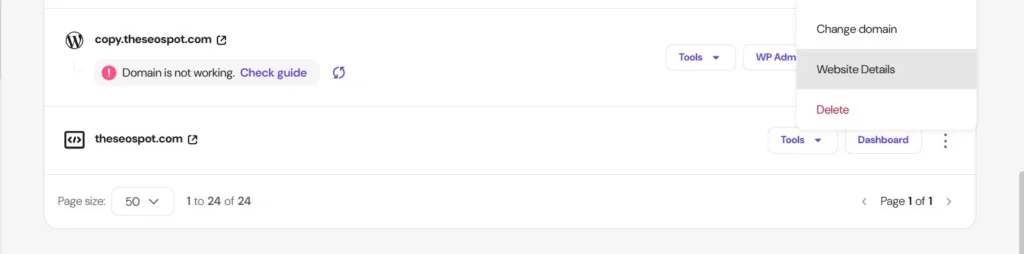
Click the three-dot menu.
A small dropdown will appear with three options:
- Change domain
- Website Details
- Delete
Click the website details.
Step 3: Click “Website Details”
From the dropdown, click Website Details.
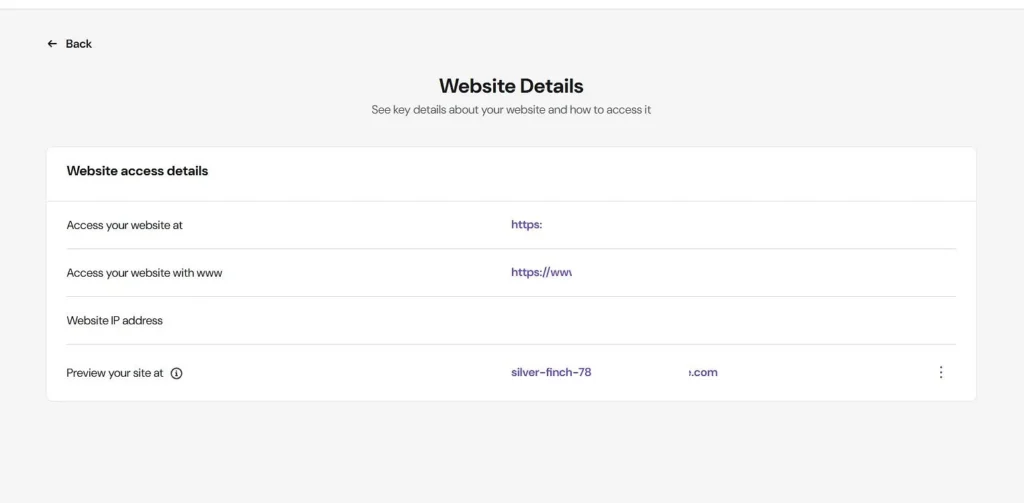
Hostinger will take you to a page at:
hpanel.hostinger.com/websites/theseospot.com/order/details/website-accessThis page shows four rows of information about your website.
Step 4: Locate the “Preview Your Site At” Row
At the bottom of the Website Access Details card you’ll see:
| Field | Value |
|---|---|
| Access your website at | https://yourdomain.com |
| Access your website with www | https://www.yourdomain.com |
| Website IP address | 1x.1x.1×6.1×8 |
| Preview your site at | silver-finch-X.hostingersite.com |
The last row — Preview your site at — is the temporary Hostinger subdomain. This is not your real domain. It’s only useful during the initial setup phase before your domain’s DNS has propagated.
Step 5: Remove the Preview URL
To remove the preview URL row, click the three-dot icon (⋮) on the far right of the “Preview your site at” row.
A small option will appear — click Remove or Delete.
Hostinger will confirm the removal. Once done, that row disappears from your Website Details page entirely.
(Add your screenshot here — showing the three-dot icon on the preview row and the remove option)
What If the Remove Option Isn’t There?
On some Hostinger plans the preview URL removal option may be greyed out or unavailable until the website has an active, connected domain. Make sure your primary domain shows as connected and working before attempting to remove the preview link.
If your domain still shows “Domain is not working” at the top of the Websites list, resolve the DNS issue first. Once the domain is active, the preview row removal option becomes available.
That’s the full process. Three clicks from the Websites list and the preview URL is gone.